Add iCal to Calendar
Keep your schedule accurate and easy to manage. Classes may skip certain dates due to holidays, half days, or other adjustments, and occasional changes to times or locations can occur.
Each course enrollment and facility request in Arux includes an iCal feed you can subscribe to in your personal calendar. Subscribing (instead of downloading) keeps your calendar automatically updated if any details change.
Sync a Course Enrollment to Your Calendar
- Log into your Arux account dexterschools.arux.app/account
-
Scroll to the bottom of the page and click My Dashboard.
-
Locate the course enrollment you want to add to your calendar.
-
Right-click the Download iCal button.
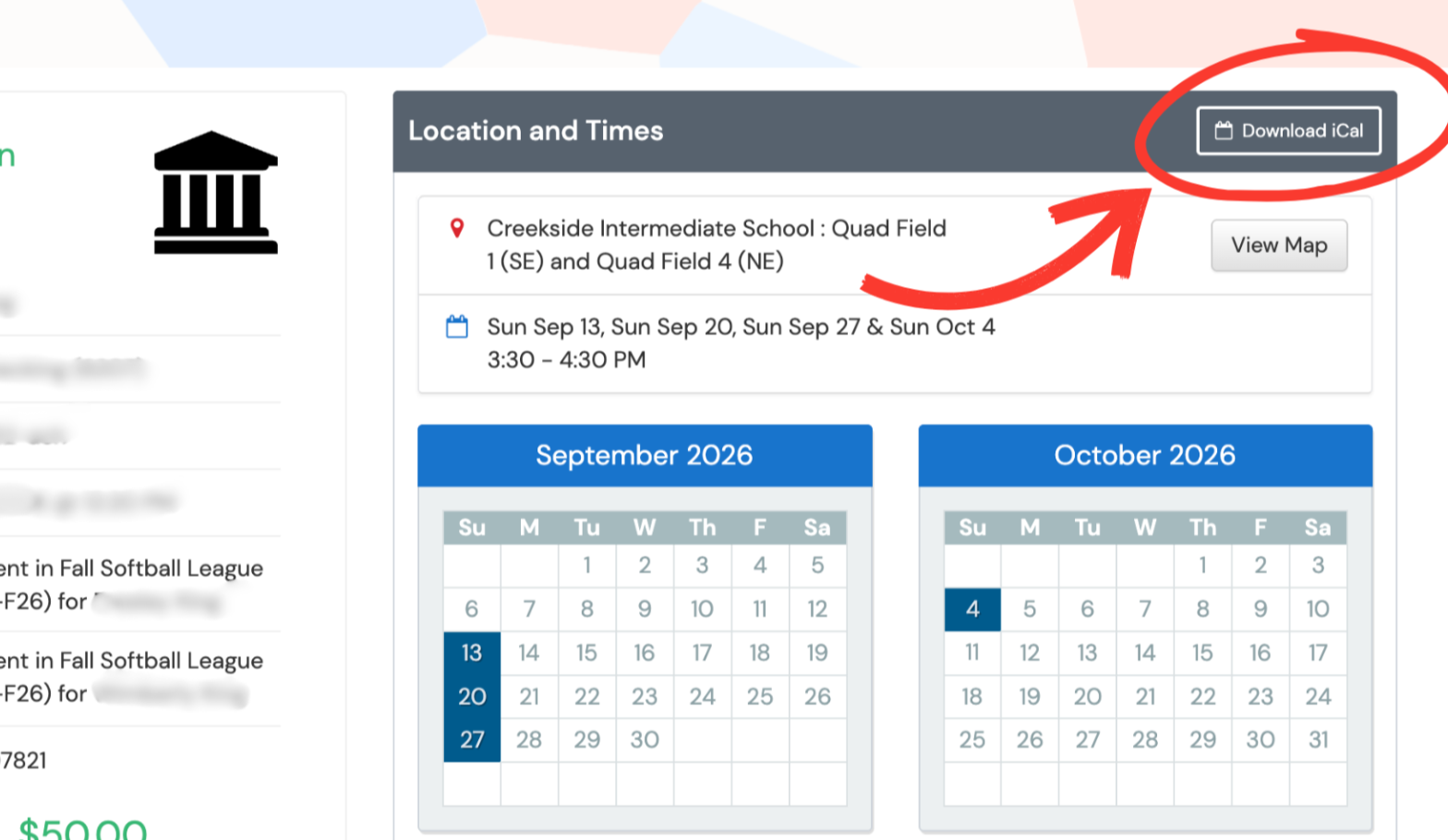
- Copy the link address.
- Add the calendar to your calendar app using From URL (Google, Apple, Outlook, Yahoo, etc.).
Sync a Facility Request to Your Calendar
-
Log into your arux account.
-
Go to My Dashboard.
-
Find the account under which the facility request was created.
-
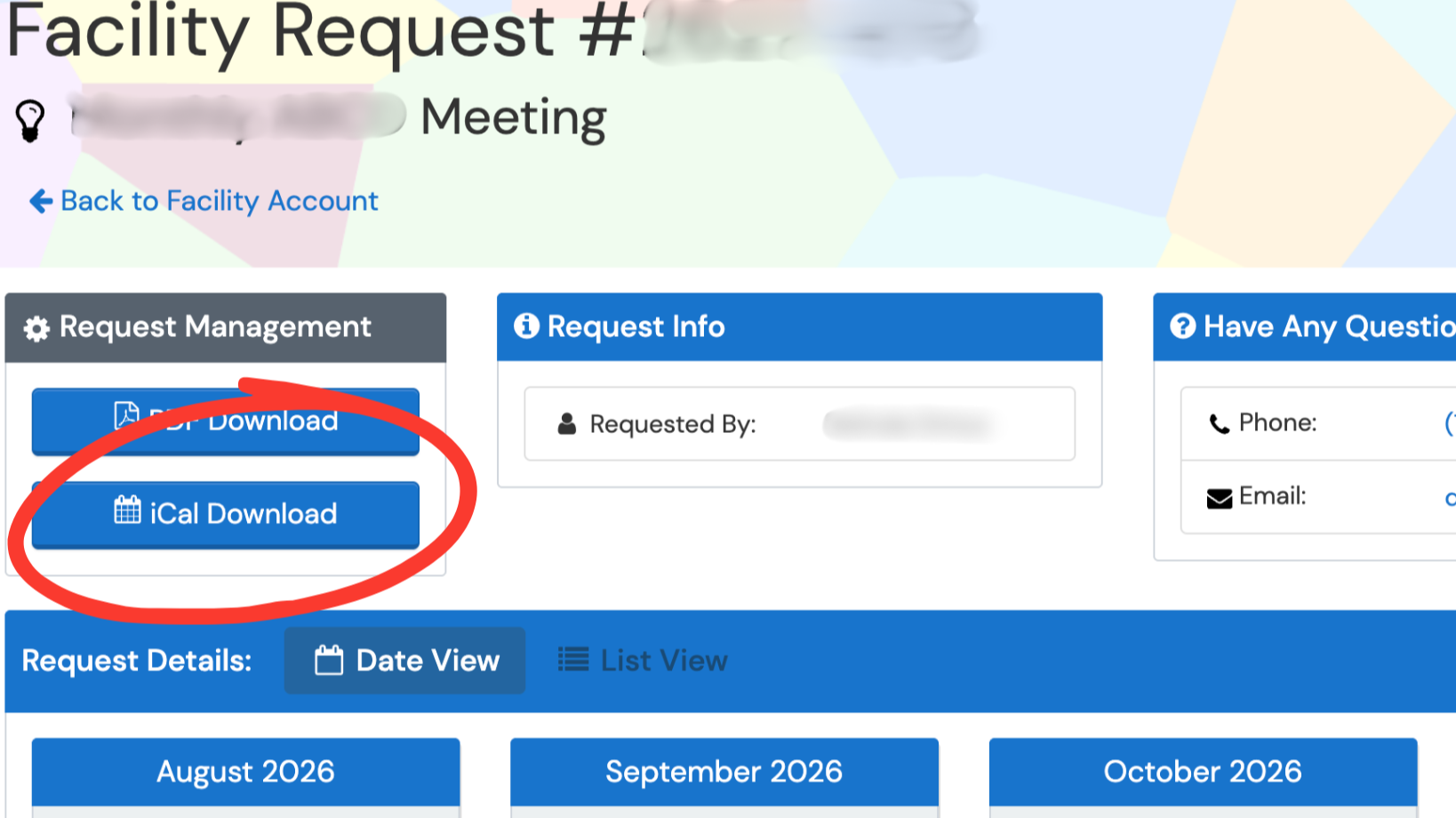
Click on the facility request.
-
Right-click the iCal Download button.
-
Copy the link address.
-
Add the calendar to your calendar app using From URL (Google, Apple, Outlook, Yahoo, etc.).
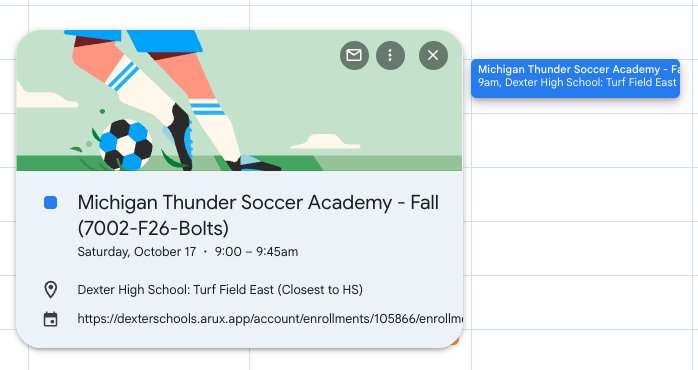
Here is an example of what your calendar will look like if you use Google:
Important Notes
-
Adding the calendar using From URL keeps it synced with Arux. If times or locations change, your calendar updates automatically.
-
Downloading and importing the .ics file creates a one-time copy and will not stay synced.
-
Subscribing also helps with reminders when a class does not meet due to a holiday, half day, or other schedule adjustment.
Facility requests may take up to 24 hours to appear on your calendar after subscribing. This is normal and depends on how often your calendar service refreshes subscribed calendars.